Workspaces and the files
Workspaces are data containing spaces which are secured for Read, Read/Write or Admin operations - restricted to specific groups or individuals.
A typical use of workspaces is to use them for "investigations" e.g. an investigation about "Case XYZ" might have its workspace.
Workspaces can contain the following types of objects:
-
- Files and binaries Each Workspace has a storage space where items can be stores - for examples docx, pdfs, multimedia files etc. Files can also be Octostar native items such as link charts, saved searches and more. Files can be moved in and out of folders, across workspaces (given the right permissions) and uploaded from / downloaded to individually or in bulk (given the right permissionts)
-
- Workspace records. These are typically database records which represent entities of interest (e.g. Persons, Cars, Companies, CDR records etc.. or any other from the The ontology (data model)) but can also be Octostar specific records which represent relations between nodes e.g. comments, tags, relationships, alerts etc etc.
Uploading Files
Files and media can be uploaded in Octostar:
- With the Upload File menu option
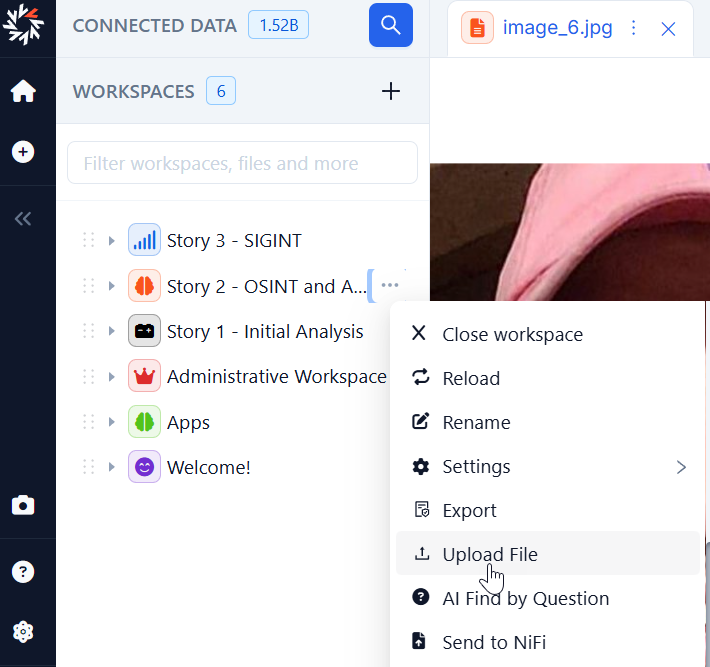
- By dragging and dropping from your desktop directly into the sidebar
Notice that one can upload multiple files by:
- selecting multiple files from the dialog or dropping multiple files
- selecting or dropping a ZIP file and then confirming when the dialog appears (highly reccomended for 50+ files)
Downloading files (and workspaces for reimport)
Files can be individually downloaded with the option in the menu.
Bulk downloads are called exports and are downloaded as ZIP files.
Folders and full Workspaces can be exported to a zip file and reimported back
Granting permissions and "Administrative" workspaces
Octostar allows one to share workspace swith other users or roles in read / write / admin mode - not unlike other popular file collaboration solutions. These settings can be changed in the "member access" section of the contextual menu of workspaces
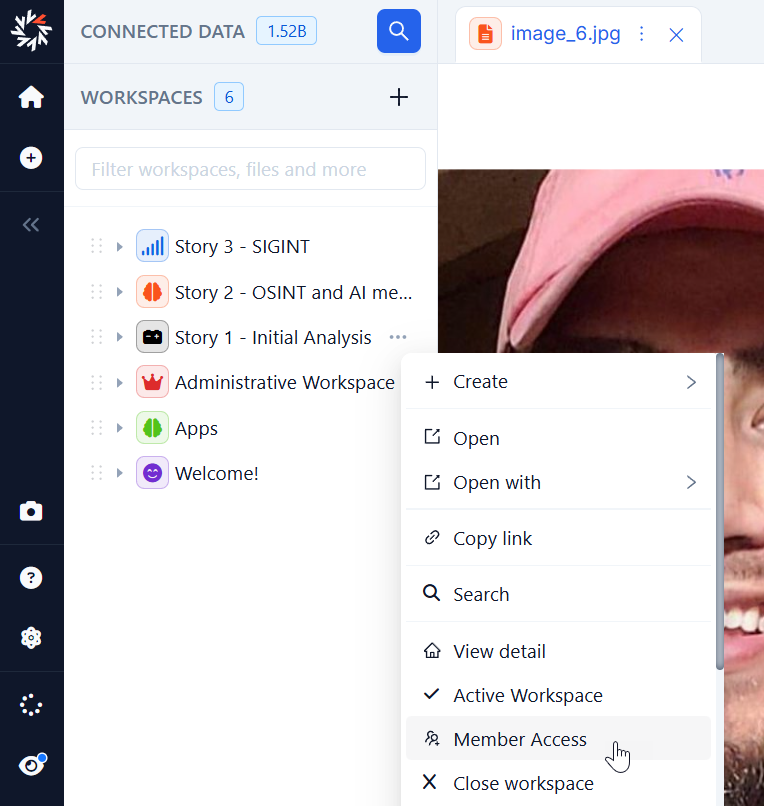
Workspaces however are not only used to store "investigation" files - somtimes are used to store configuration files which are technical in nature and should be hidden to standard users.
Administrative workspaces
Octostar is highly customizable allowing organizations to define how results are visualized in the search engine, in entity cards, with custom analytic dashboards, in data entry forms and more.
These configurations are themselves files which are saved in workspaces which are typically hidden from the end users and made to "auto open".
These workspaces are typically named "administrative" workspaces.
To make a workspace auto open and hidden simply use the Grant Permission dialog of a workspace - with options only available to the a super administrator.
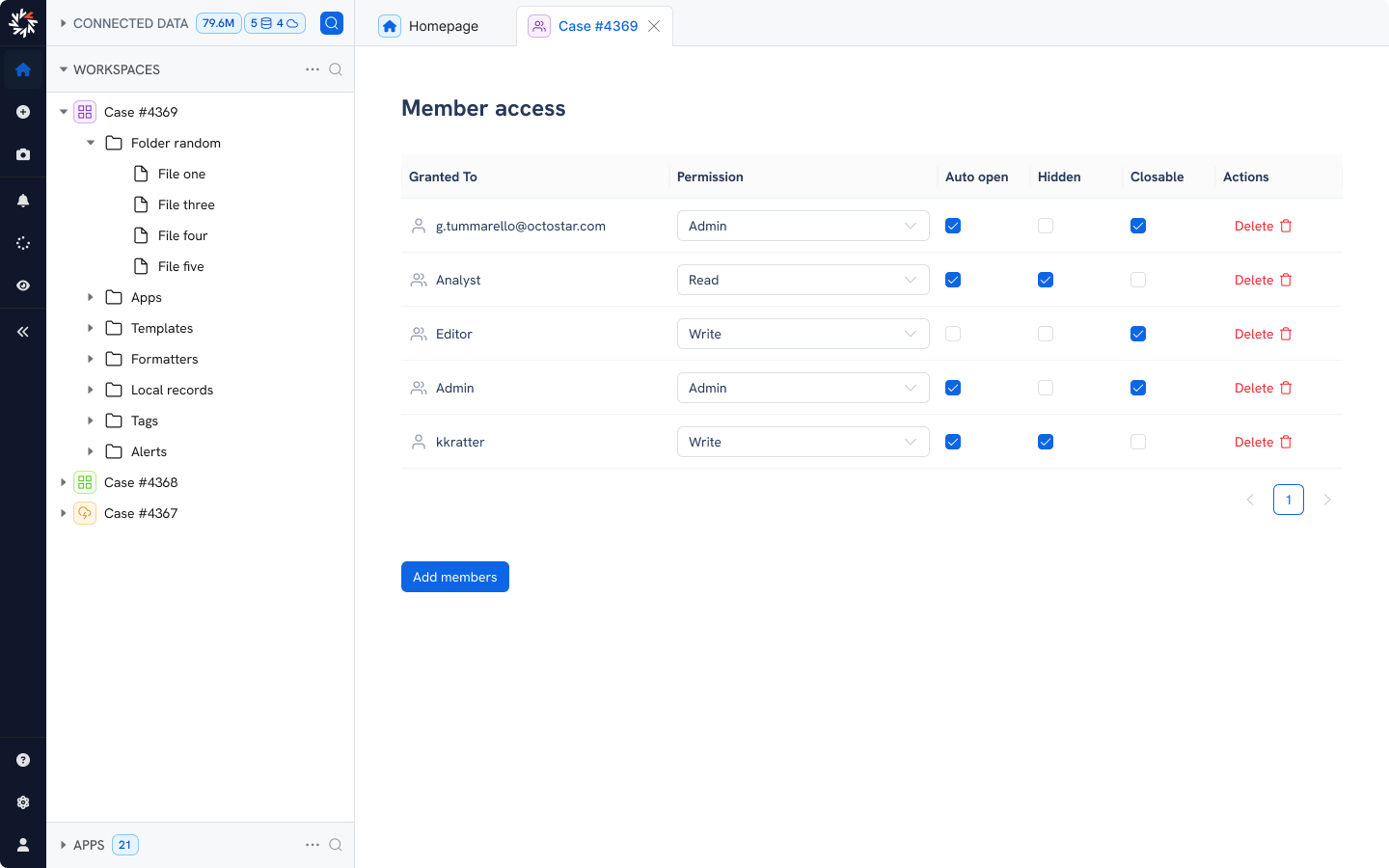
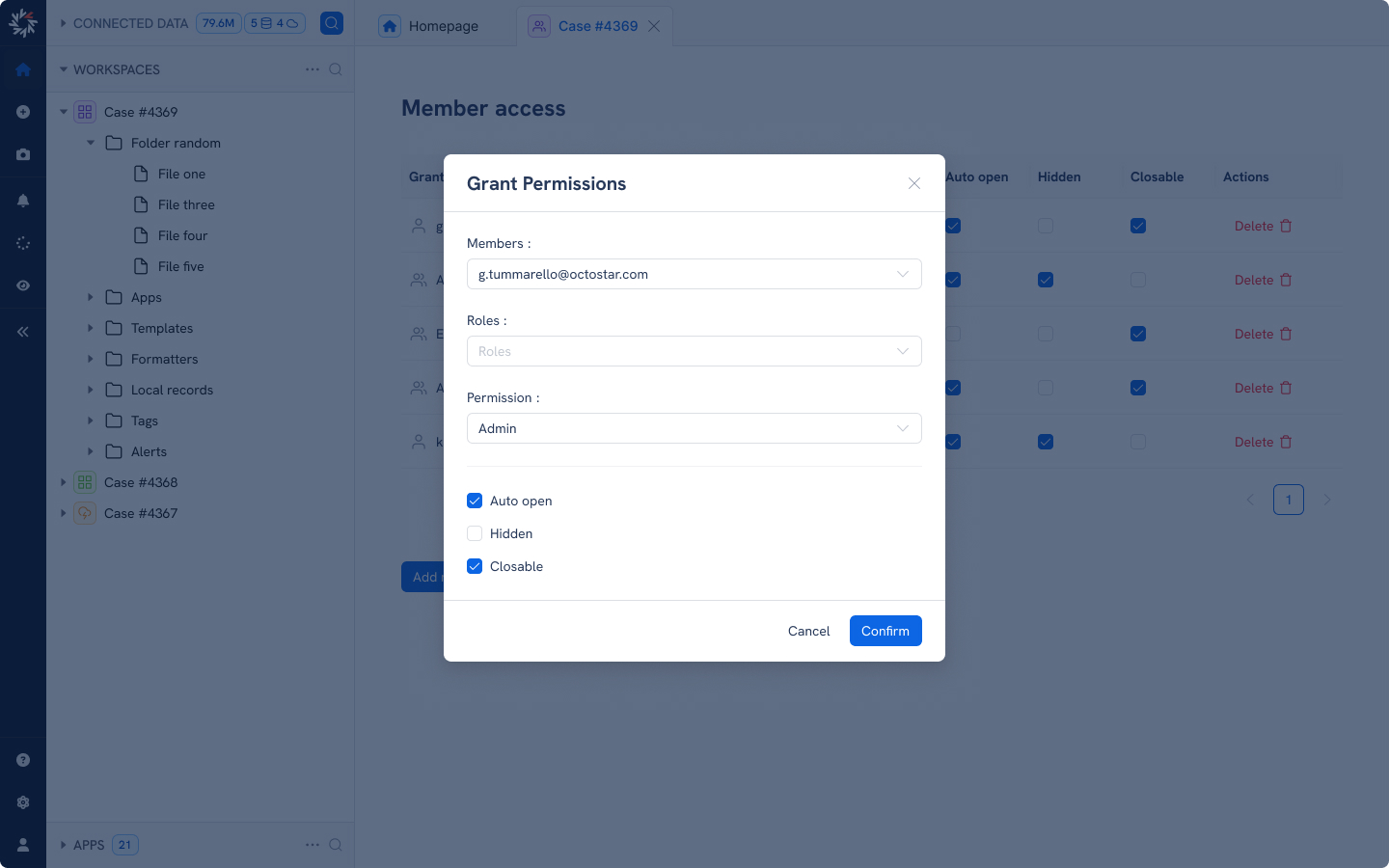
The meaning of the checkboxes is:
- Auto open - this dataspace will open automatically when a user or a group logs in
- Hide by default - the dataspace will not be visible to the user (e.g. only contains apps and templates, no useful files)
- Closable can the user close this dataspace while in use?