Workspace Access levels & user management
Summary
This page explains to Octostar administrators
- What's a workspace access level
- How assigning access levels modifies the user capabilities on a workspace
- How to change access levels
- How to add, remove, edit users in Octostar
Introduction to Workspace Access
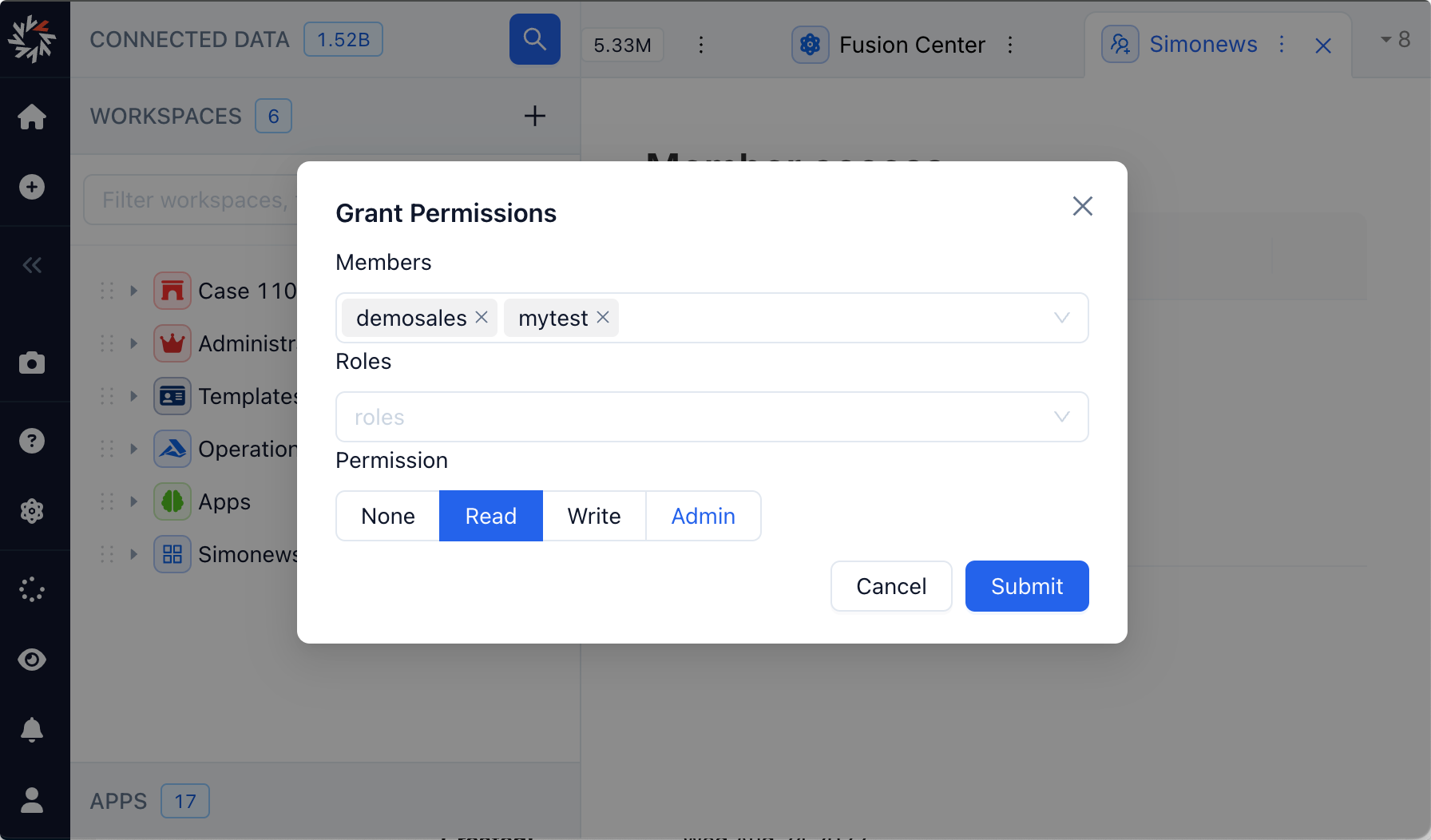
Workspaces access levels in Octostar are attributed either to users or roles, and describe the acthe classes of operations that can be done within a workspace, and all the resources inside of it collectively.
Types of access levels
There's three kinds of access levels to associate a user or group with a workspace:
- Read
- Write
- Admin
When no access level binds a user or group to a workspace, this will be not even visible in the "open workspace" dialog.
Understanding User access to Workspaces
A workspace user is any user that has some access level configured for workspace. This user can browse and access the resources inside the workspace according to the type of access level granted.
How workspace access levels affect interactions with resources
Various kinds of resources can be found in a workspace, and each type of access level grants some specific actions upon them.
Directories
Directories are structured storage areas within the system that help organize content for easy access and management.
- Read access grants directory browsing
- Write, Admin access grant adding files, and recursive deletion as well
Files
Files include multimedia objects, documents, and link charts. These are the primary types of content that users interact with on a daily basis.
- Read access: only view
- Write, Admin access: view edit, delete
Investigative Local Records
Investigative local records consist of instances of investigative concepts like person, vehicles, positions. These records are crucial for detailed analysis and tracking.
- Read workspace access: only view
- Write, Admin access: view, edit, create new, delete
Ancillary Local Records
Ancillary local records are the result of user activity on the workspace items. This includes comments, tags, saved searches, and other interactive elements.
- Read workspace access: only view
- Write, Admin access: view, edit, create new, delete
Apps
Apps extend the functionality of the system by integrating additional features.
Apps sources may be found as sub-directories of the special top-level directory called "Apps".
An App folder can be opened with "Apps Editor". Apps can be launched from there, and found in the list of running apps in the Job Manager tool.
- Read workspace access: list, view source, logs, and use App (if already running)
- Write, Admin access: deploy, delete, or create a new app.
Templates
Special files that customise the appearance of other parts of the UI, such as search results cards. They provide a way to maintain consistency and branding across the platform.
- Read workspace access: only view
- Write, Admin access: view, edit, create new, delete
Special roles
When a user is associated to one of these self-esplicative special roles, they will automatically gain more permissive access level by default to all across workspaces.
- read_all_workspaces
- write_all_workspaces
- admin_all_workspaces
Special usernames
If the username "admin", then - even if no special role or permission is associated to them - they will be automatically administrators of all workspaces. De facto bypassing the permission system in god mode.
Managing users & roles
The association between users and roles can be changed via the Fusion Center.
- Login into Octostar (as a privileged user, for example admin)
- Navigate to Manage > Access Manager
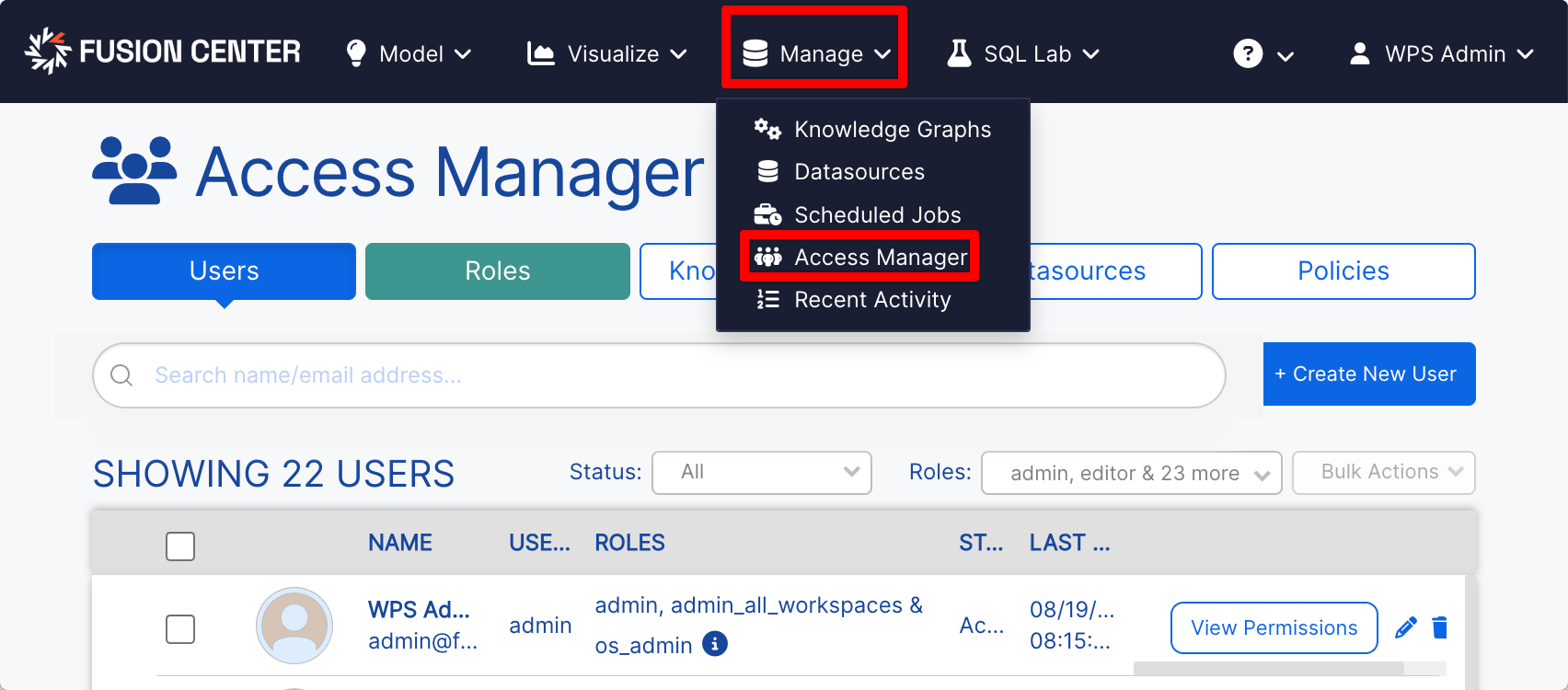
From here, feel free to add, modify, delete any user or role, or the associations between them.
NB: don't get confused with the word "permission" in this view.
- Fusion Center permissions (govern user access to ontologies, data sources)
- Workspace access level (govern access to specific workspaces) are configured right-clicking on workspaces.
Managing access levels for a workspace
This is how - as a workspace admin - you are entitled to manage other users (or roles) access levels to your workspaces.
- Login into Octostar
- Create, or open a workspace where you have admin access level
- Right click on the workspace, select
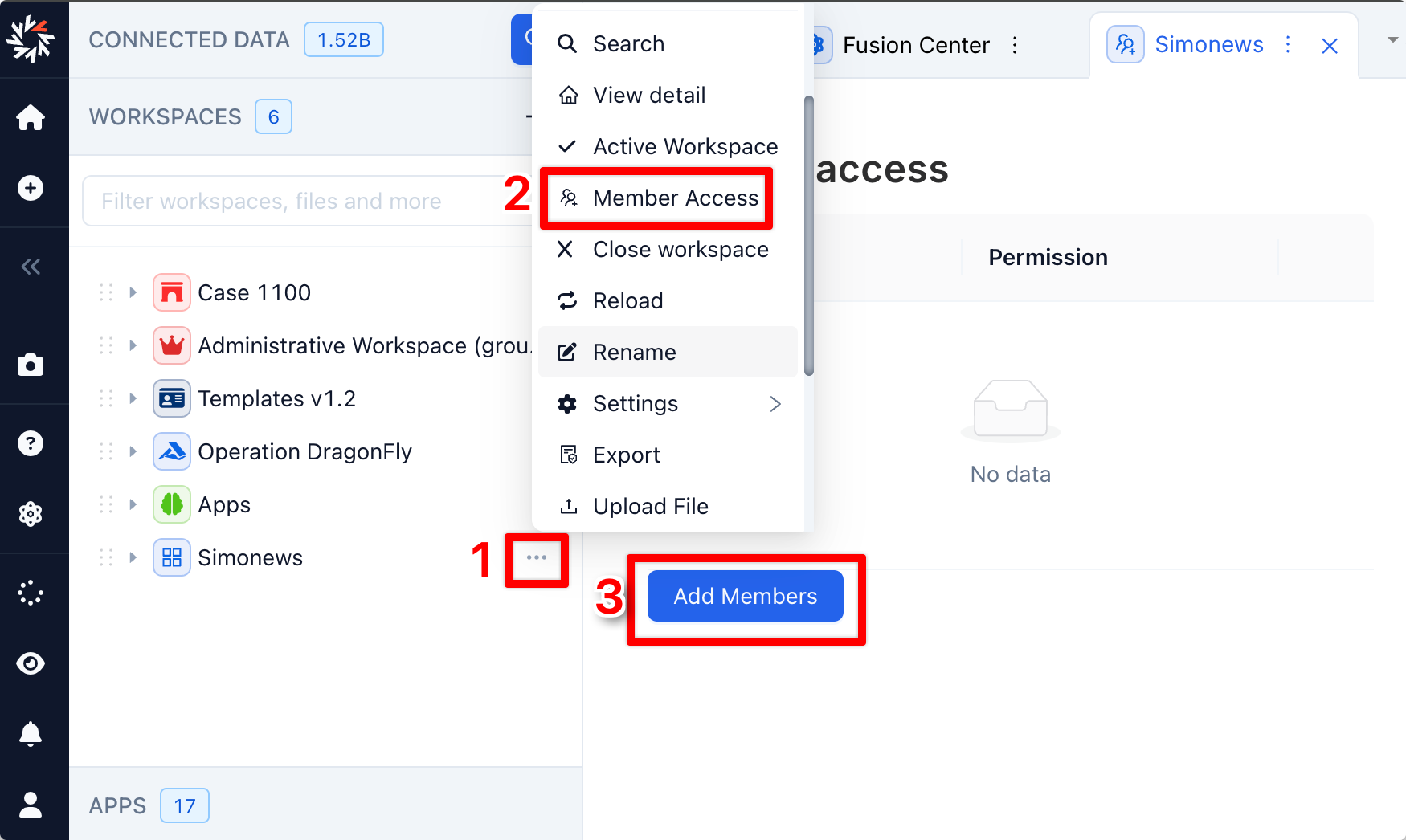
Now you can associate one or more user, or role to a specific access level