Syncing environments
Workspaces migration
Workspaces encapsulate a great amount of data and functionality in Octostar:
- Local records (instances of concepts an investigator, or app has created)
- Apps
- Files
- Dashboards
- Templates
Workspaces can be exported as zip files, and imported directly from an Octostar environment to the next with great ease.
Exporting a workspace
Open the desired workspace, then right click on the "..." icon, and choose "Export
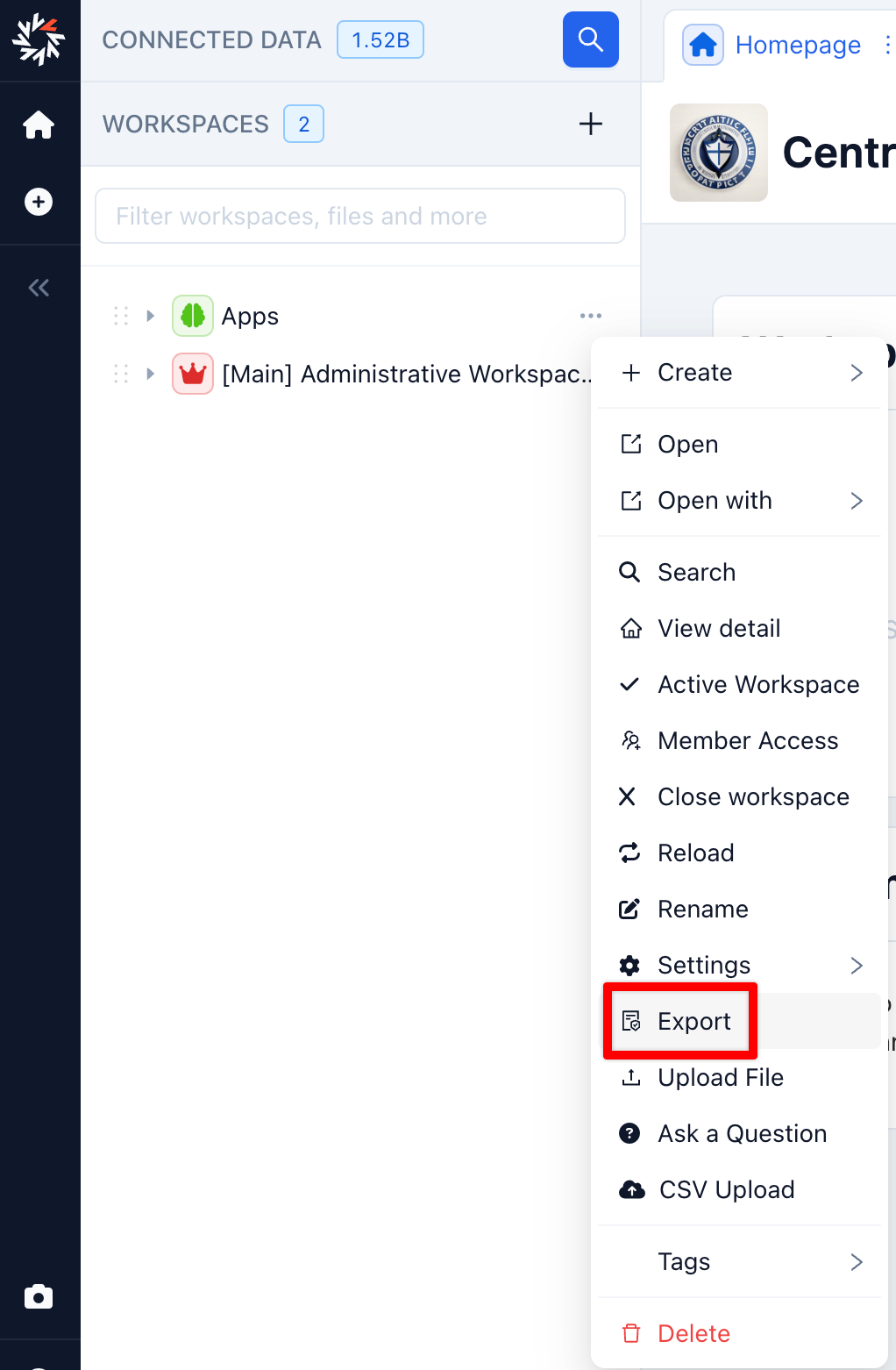
When finished, a zip file will be downloaded in thebrowser. Save this archive for the next step.
Importing a Workspace
In the destination environment, click the plus sign in the workspaces section, choose "upload" and drag the zip file into the drop area.
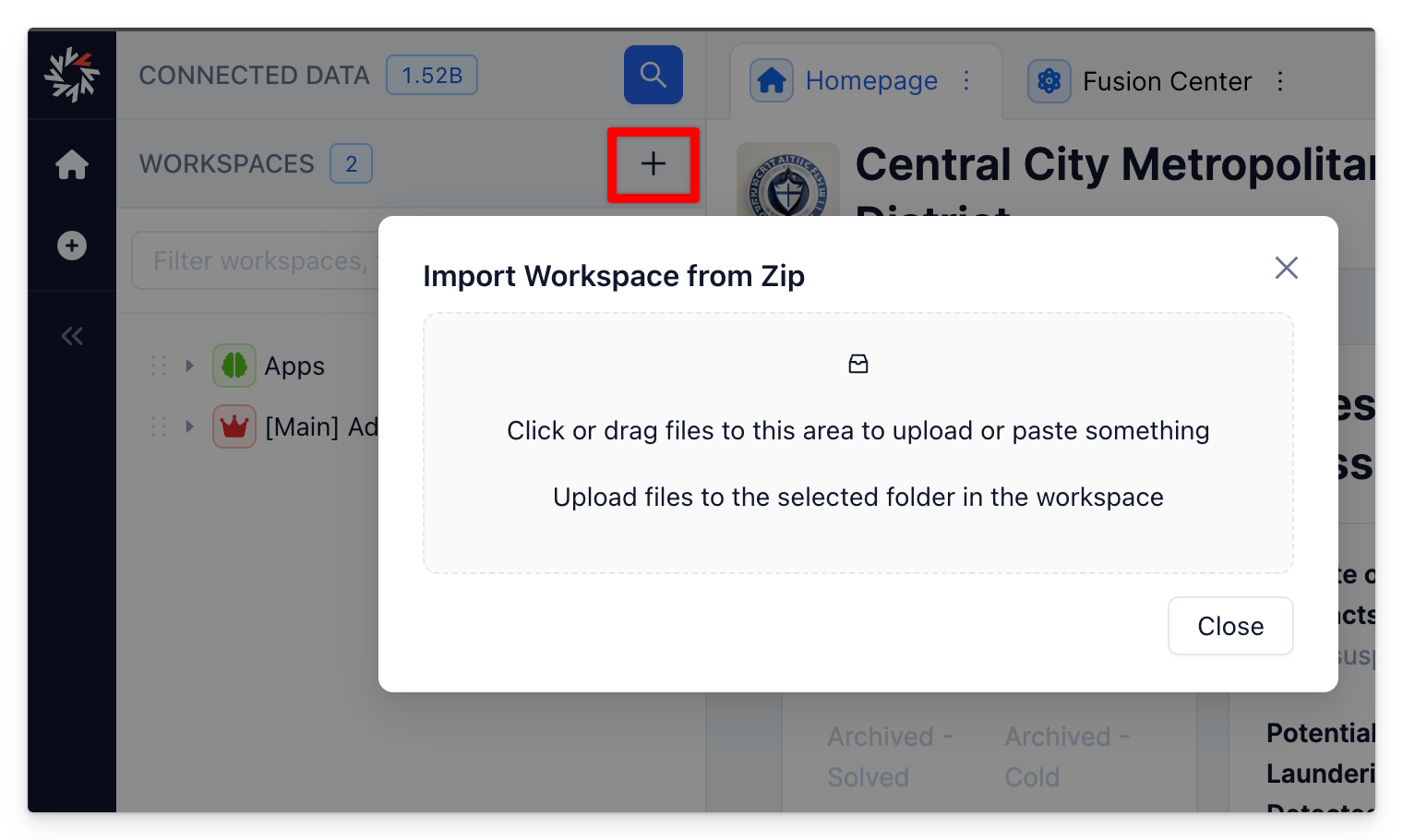
The import process will start, and at the end of it, the workspace will open up for you.
Repeat this operation for as many workspaces you would like to migrate.
Ontology Migration
To migrate the ontology there are 2 steps involved.
- Go to https://fusion.dev.octostar.com/timbr/manage_ontologies/, click on the ... menu for the ontology that needs to be migrated (usually
os_ontology_v1), choose Export > Another Timbr Environment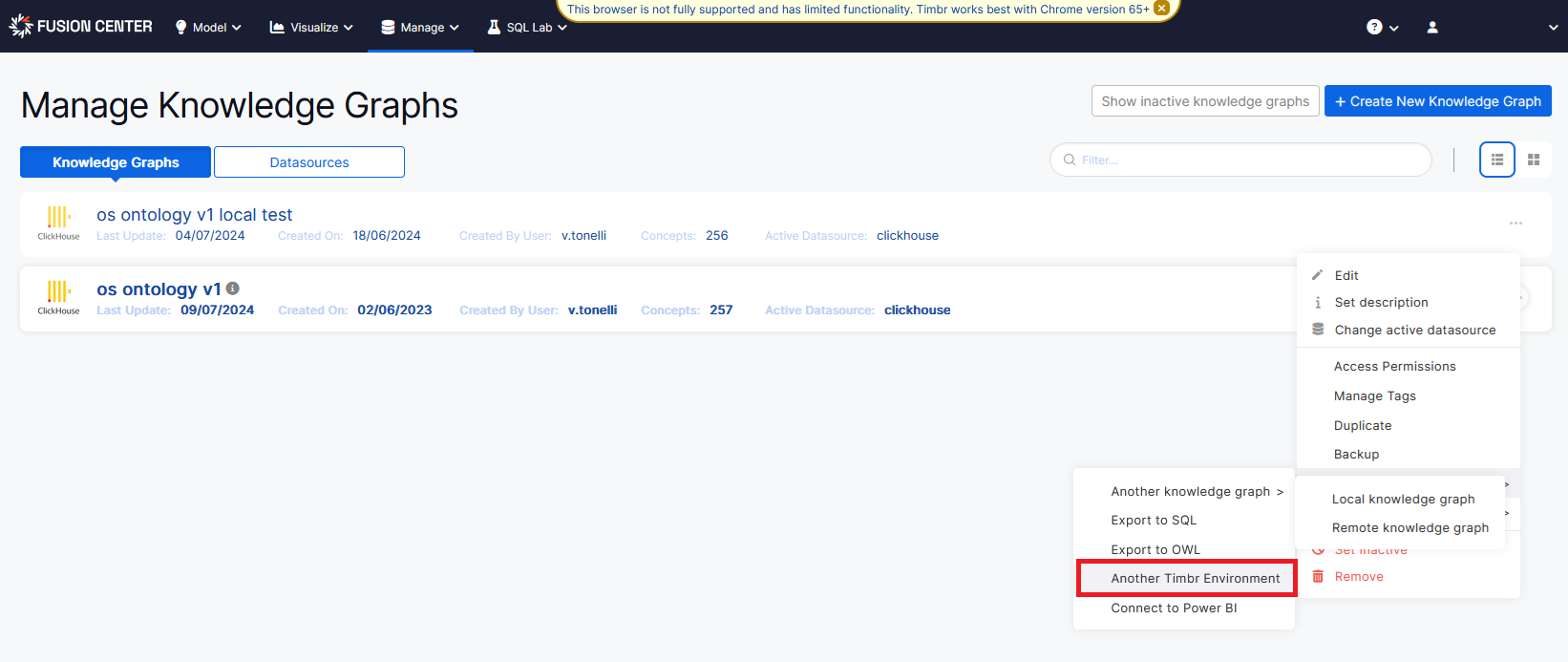
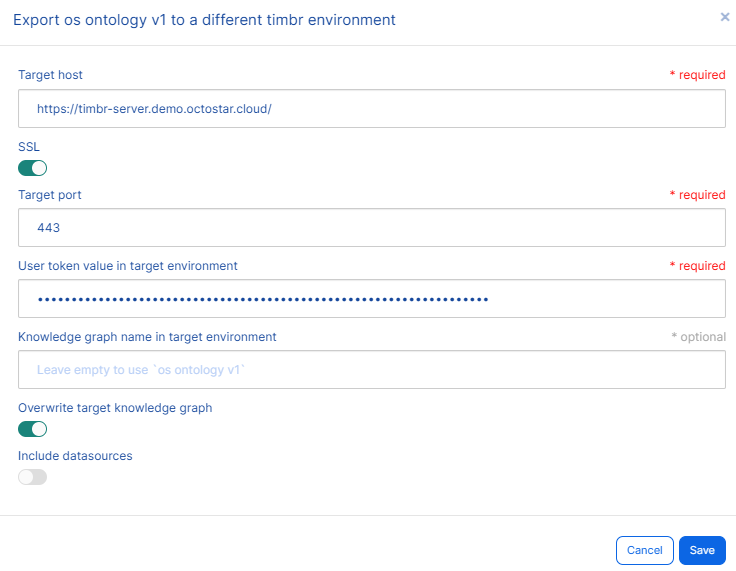
- In the modal that opens, set the following parameters:
- Target host: qa: https://timbr-server.qa.octostar.com/ demo: https://timbr-server.demo.octostar.cloud/
- SSL: true
- Target port: 443
- User token value in target environment: qa: login to https://fusion.qa.octostar.com/ as admin (creds are in Keeper), copy user access token demo: login to https://fusion.demo.octostar.cloud/ as admin (creds are in Keeper), copy user access token
- Knowledge graph name in target environment: leave blank to use the same name
- Overwrite target knowledge graph: true
- Include datasources: false
It should look something like this:
Refresh Local Data
This step is necessary for reconciling the structure of the tables that host the local records with the potentially modified structure of the concepts and relationships in the new ontology (updated in the previous chapter).
- Login into the environments as admin
qa: https://home.qa.octostar.com/
demo: https://home.qa.octostar.com/
- Use swagger:
qa: https://home.qa.octostar.com/api/octostar/meta/#/workspace_data/refresh_local_data
demo: https://demo.octostar.cloud/api/octostar/meta/#/workspace_data/refresh_local_data
- Call the
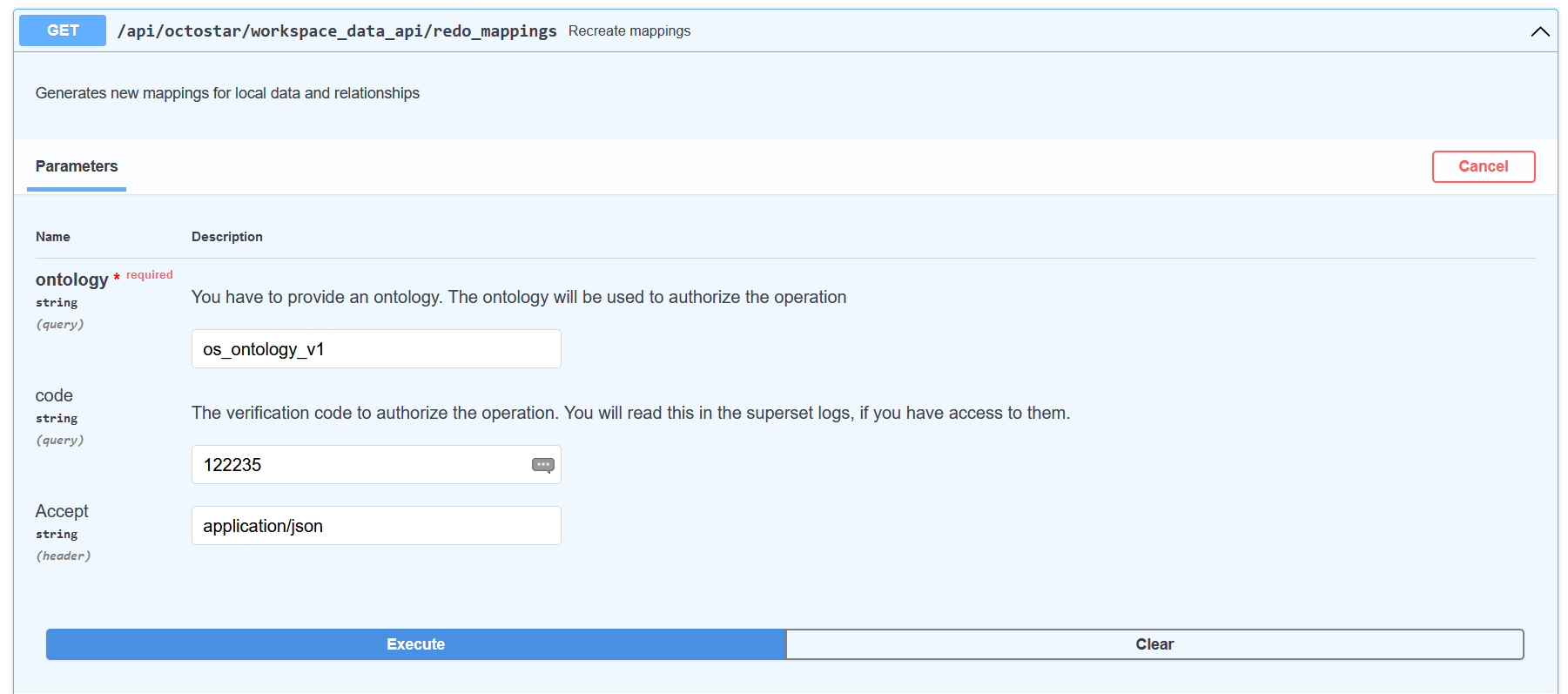
refresh_local_dataendpoint in the destination environment, passing in the following parameter:- ontology: os_ontology_v1
Congratulations! Now every aspect of the internal state of Octostar will be transferred from the source to the destination environments.