Graph Explorer
The Graph Explorer page is a graph-based visualization tool for users to explore data as connected entities with direct or indirect relationships, commonalities, and dependencies. The Graph Explorer lets users intuitively explore hidden patterns and connections between data points. The data points are expressed as nodes, and the relationships connecting them are expressed as edges/vectors.
The Graph Explorer allows users to visualize the data and better understand how the data is related, gain insights on specific data points, and express complex scenarios or sequences of events.
Graph Explorer Page
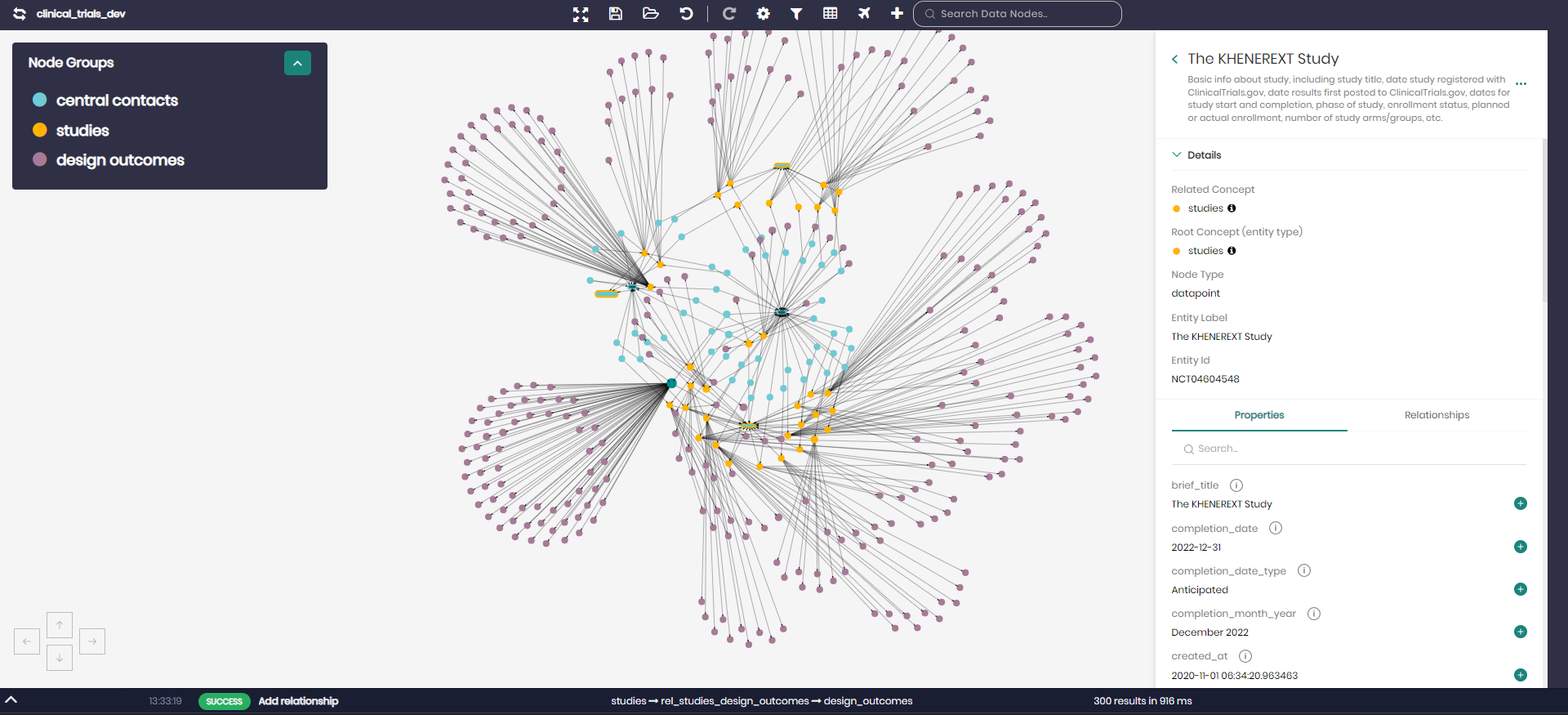
The Graph Explorer can be accessed by clicking on the Visualize tab and selecting Graph Explorer.
The starting point in the Graph Explorer page after selecting the desired knowledge graph is to create your initial query. The query is created with a user-friendly SQL query builder with dropdown menus to choose a concept, its properties, filters, and a limit to the query.
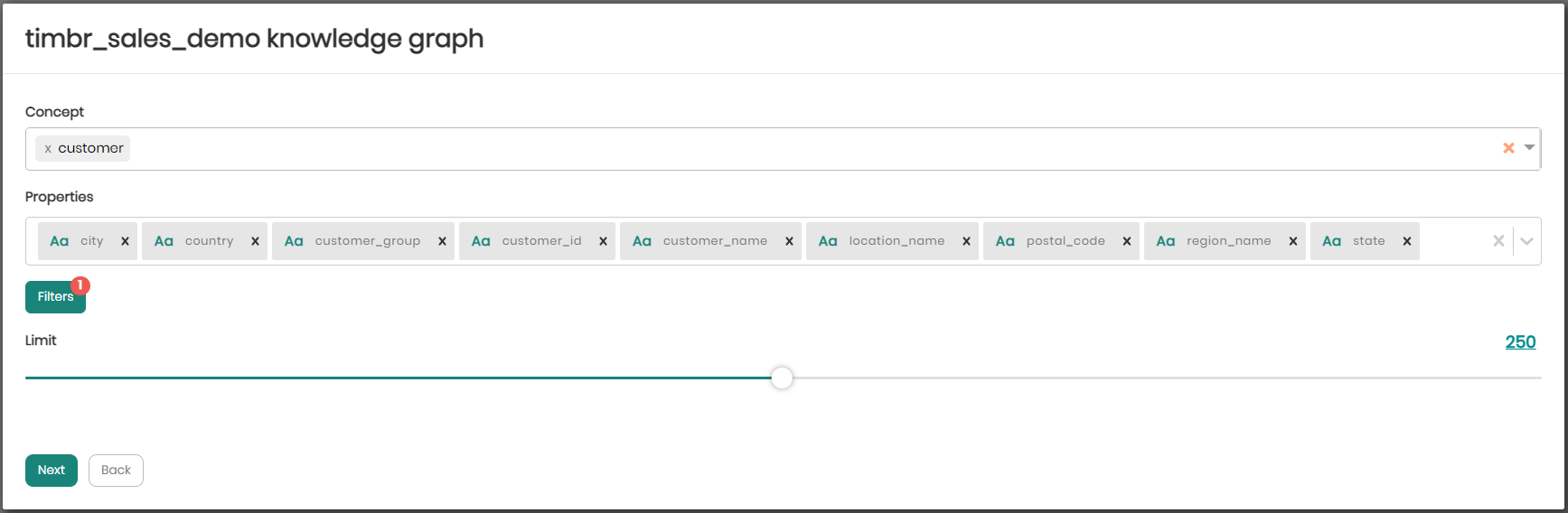
After the initial query, the resulting data points are shown as nodes on the graph. What this means is that a node in the graph represents a datapoint or a datapoint property (attribute).
The components of the graph explorer are as follows:
Main Graph View
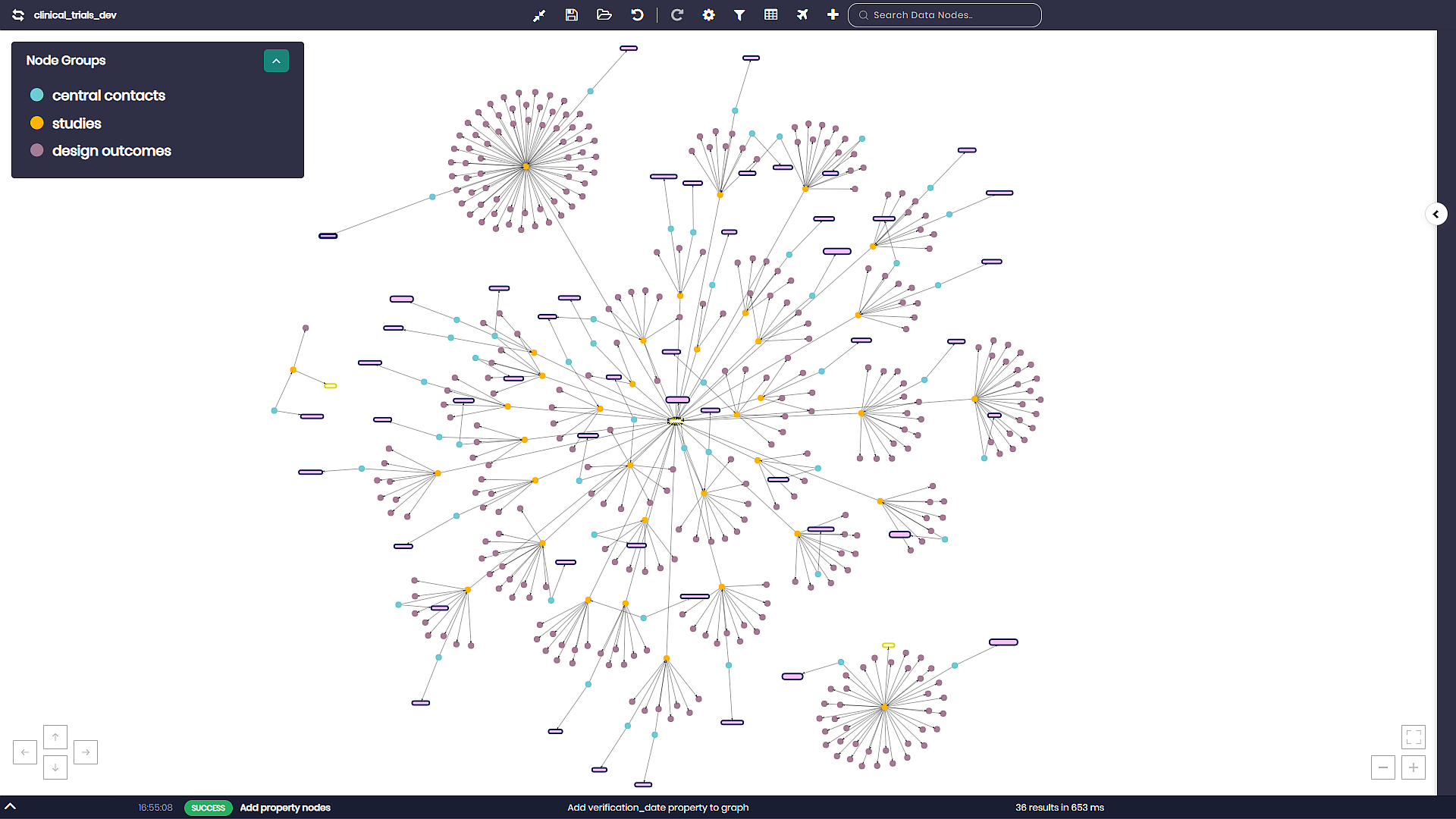
An interactive graph representing the nodes as datapoints and relationships as edges. You can zoom-in and zoom-out of the graph view by using the mouse wheel.
Main Graph Control

The main graph control can be found above the graph and controls all things related to the ontology and the graph as a whole. This includes:
Change knowledge graph - Allowing to transfer and explore any other knowledge graph.
Fullscreen/Exit Fullscreen - For entering and exiting full-screen mode.
Save Exploration - Saves the status of the current exploration.
Open a saved graph - Opens a list of all the saved explorations to choose from. Once chosen the saved exploration will be added to the graph.
Undo/Redo - Undo the graph state to a previous state or Redo the following action.
Graph settings - Opens a window with different graph settings including:
- Physics - This setting can be set to Auto, On or Off, determining whether the nodes on the graph will automatically stop moving based on the timeout chosen right below physics, move constantly or perhaps not at all.
- Automatic graph functions - These functions run automatically on the graph and include the following functions:
- None - Graph Explorer will not run any queries or try to automatically infer any relationships between the nodes in the graph.
- Infer similar properties and relationships - Graph Explorer will automatically add nodes and edges to all nodes that have at least one or more relationships to other nodes in the graph.
- Retraverse similar properties and relationships - Graph Explorer will automatically traverse the same relationships of existing nodes in the graph when introducing new nodes of the same group that exist in the graph.
- Retraverse and infer similar properties and relationships - Perform both automatic functions as described above.
-
Node Shape - Choose the shape of the nodes, current options are dot, box, circle, star, ellipse and square.
-
Node Scaling - Choosing to scale the node sizes based on different parameters, the current options are:
- Incoming and outgoing relationships
- Incoming relationships
- Outgoing relationships
- By a specific property
- Constant (default)
- Page rank algorithm
- Between centrality algorithm
-
Node size - The node sizes can be manually adjusted using the slider.
-
Layout - Choose the layout of the graph from:
-
Free-form - The default layout view of the graph.
-
Hierarchy - A hierarchy layout view of the graph that when chosen has the following options available:
Direction - The direction of the relationships in the graph should be one of the following options:
- Up -> Down
- Left -> Right
- Down -> Up
- Right -> Left
Sort - The algorithm used to ascertain the levels of the nodes based on the data. Sort contains two options:
- Hubsize - Takes the nodes that have the most relationships and puts them at the top. From that point, the rest of the hierarchy is evaluated.
- Directed - Adhere to the relationships in the data (the edges).
Shake To - Controls what is the source in the directed layout. There are two options:
- Roots - When all the root nodes are lined up at the top and their child nodes are as close to their root parents as possible.
- Leaves - When all the leaves are lined up at the bottom and their parent nodes are as close to their children as possible.
Level Space - The spacing between the node levels on the graph.
Node Space - The spacing between nodes in the graph.
Tree Space - The spacing between trees (a group of connected nodes) in the graph.
Once settings are modified Save must be clicked to save the changes. To return to the graph’s default settings, Reset to default should be selected on the top right corner of the graph settings window.
Filter Graph - Enables to filter the graph by relationships, properties and other general attributes, with the ability to show or hide any attribute on the graph.
Fetch all groups properties - Adds all the properties to all the node groups on the graph, if they haven’t already been added using the query builder earlier.
Find data connections - This enables traversing the graph using relationships and properties.
Add data nodes - Add data points as nodes to the graph like in the initial query screen. Choose a concept, properties, filters and limit to add to the graph.
Search data nodes - A text search bar for searching specific data nodes on the graph.
Node Groups Control
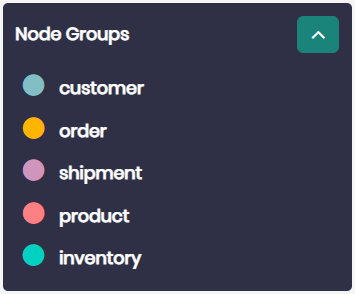
The node groups control can be found on the top left of the graph explorer page and contains a list of the node groups (concepts) presented in the graph.
In the node groups control, you can change node group settings, cluster nodes to a group, add properties to concept groups, or traverse the graph using relationships and properties from a chosen node group.
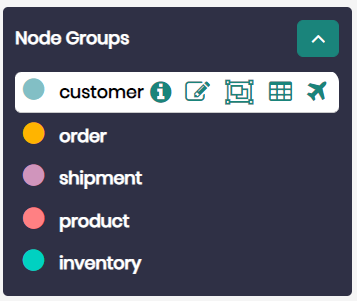
When hovering over a concepts node group the following options will reveal themselves:
Information - displays the description of the concept group that was defined when creating the concept.
Node Group Settings - Opens a window with different node group settings including:
- Node Label - This allows you to change and choose the label you would like to have representing your node group’s data points.
- Node background color - Choosing the background color of the nodes in the selected group.
- Node border color - Choosing the border color of the nodes in the selected group.
- Node label color - Choosing the label color for the nodes in the selected group.
- Node Shape - Choosing the shape of the nodes in the chosen group, current options are dot, box, circle, star, ellipse and square.
- Node Scaling - Choosing to scale the group node sizes based on
different parameters, the current options are:
- Incoming and outgoing relationships
- Incoming relationships
- Outgoing relationships
- By a specific property
- Constant (default)
- Page rank algorithm
- Between centrality algorithm
Once the node group settings are modified Apply must be clicked to apply the changes. To return to the default settings, Reset to default should be selected on the bottom of the node group settings window.
Cluster Nodes - Cluster a group of nodes into a single node, and then count the number of nodes in that group. To un-cluster the nodes, click on the cluster.
Fetch all group properties - Adds all the properties to the data points of the selected node group, if they haven’t already been added using the query builder earlier.
Find data connections - This enables traversing the graph using relationships and properties of the selected node group.
Node Properties
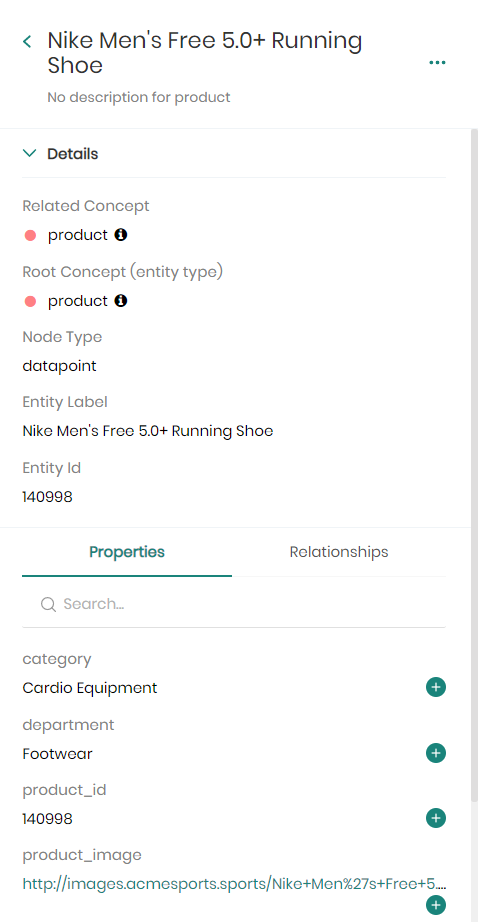
A right-side panel that opens when you click on a node in the graph. Provides additional information about a node (datapoint).
Node Action Menu
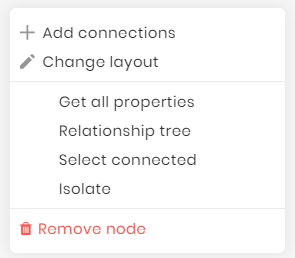
A list of actions that can be performed on a single node. This can be accessed by right-clicking on a node in the graph. The actions include:
Add connections - Allows to add connected relationships and properties to the selected node. Change layout - The ability to change or edit the selected node’s label name, color and node background color. Get all properties - Adds all the properties to the selected data point if they haven’t already been added using the query builder earlier. Relationship tree - Opens a tree view of the edges (relationships) of the selected node in the node properties side panel on the right. Select connected - Highlights all the connected nodes of the selected node. Isolate - Allows isolating a single node or all its connected nodes leaving only them on the graph. Remove node - Removes the selected node or all its connected nodes on the graph.
Query Action Log

A log of actions performed during the exploration. It can be accessed on the bottom side of the screen.
The log enables users to see the timestamp, status, action name and runtime of each action performed on the graph. In addition, the log offers the following options:
Copy query - The ability to view and copy any query behind any action performed on the graph.
Delete log - Deletes any action from the action log.
Download JSON log - Downloads the chosen action as a JSON file.