Saved Queries
In the Saved Queries page users can find a list of saved queries by platform users. Saved Queries can be searched and filtered according to labels, knowledge graphs, users, timeframes, or the last time a saved query was modified.
The Saved Queries can be accessed through the SQL Lab tab and it contains the following components:
Top right actions
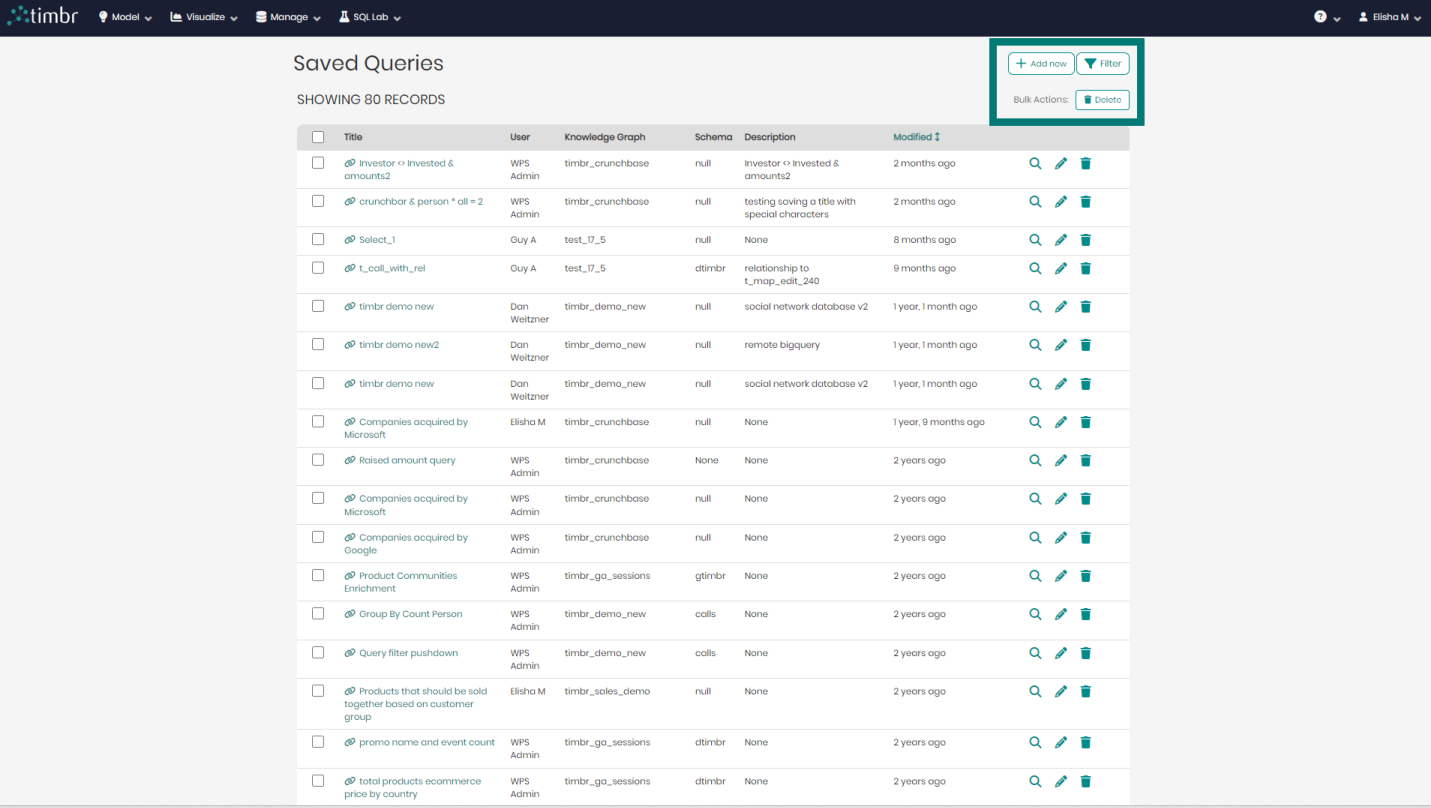
The actions that can be performed on the top right of the screen include:
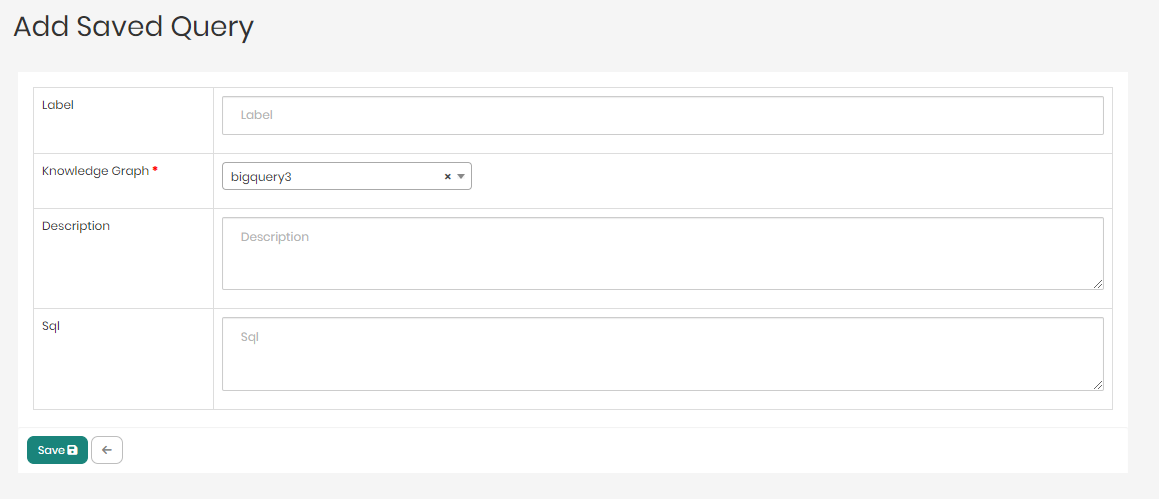
Add New - Opens a new window to create and save a new SQL query.
Filter - Opens a pop-up with options to filter the saved queries by Label, User, Knowledge Graph, Schema, and Changed on, which is the last modification date of the query.
Bulk Actions - Bulk actions contain the delete button which enables users to choose multiple queries to delete at once.
Saved Query list
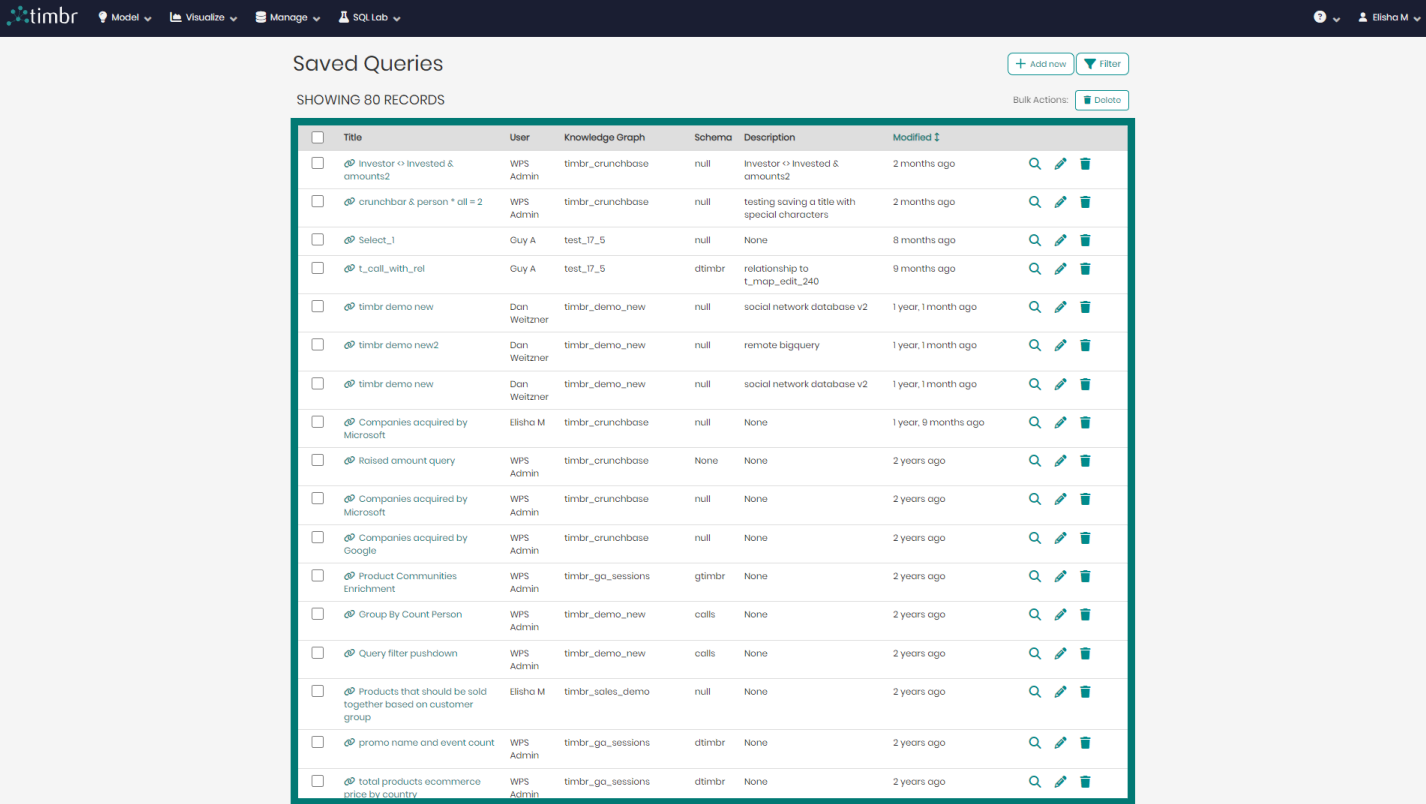
The saved query list in the center of the screen contains the following columns:
Checkbox - Allows to click and choose specific queries to perform bulk actions on.
Title - Presents the title that was given to each saved query. By clicking on a title, the query with the selected title will open in the SQL Editor where the query can be reused or edited.
User - Presents the user behind each saved query.
Knowledge Graph - Presents the name of the knowledge graph behind the saved query.
Schema - Presents the name of the schema behind the saved query.
Description - Presents the description behind the saved query if any description was given.
Modified - Presents the last time the saved query was modified.
Show Saved Query - Show saved query is presented by a Magnifying glass icon that when clicked on opens a window with additional information about the saved query.
Edit Saved Query - Edit saved query is presented by a Pencil icon that when clicked on opens a window that enables editing the saved query.
Delete Saved Query - Delete saved query is presented by a Trash can icon that when clicked on deletes the selected saved query.