Query Search
In the Query Search page users can search historical queries based on a knowledge graph, database, query string, query status, timeframe, or users. The Query Search is also where users can stop running queries, monitor their status, or check for failed queries and the reason for why they failed.
The Query Search can be accessed through the SQL Lab tab and contains the following components:
Query History
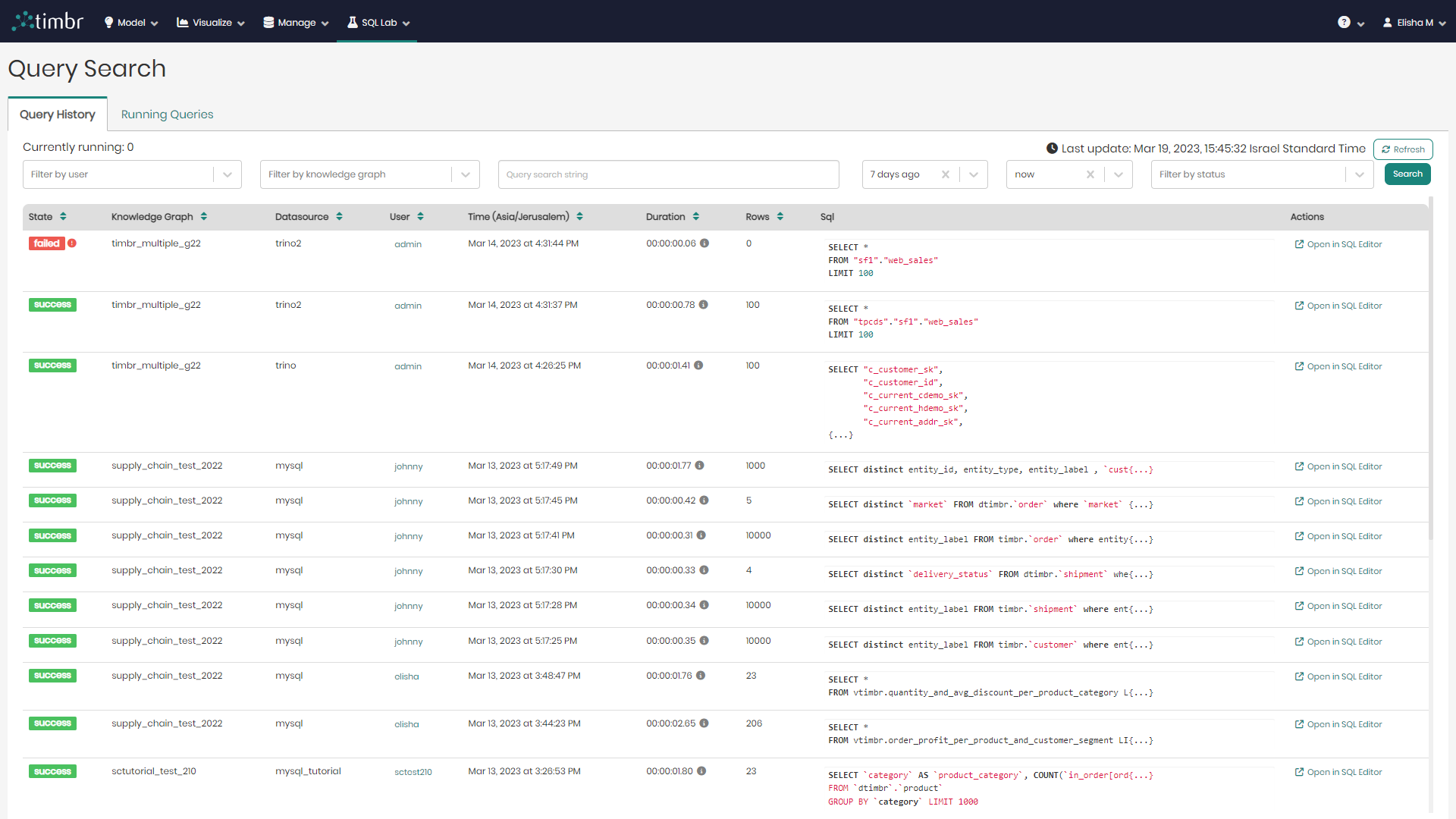
When entering the Query Search page there are two tabs. The default tab that appears is the Query History tab, which presents all the information about previously asked queries.
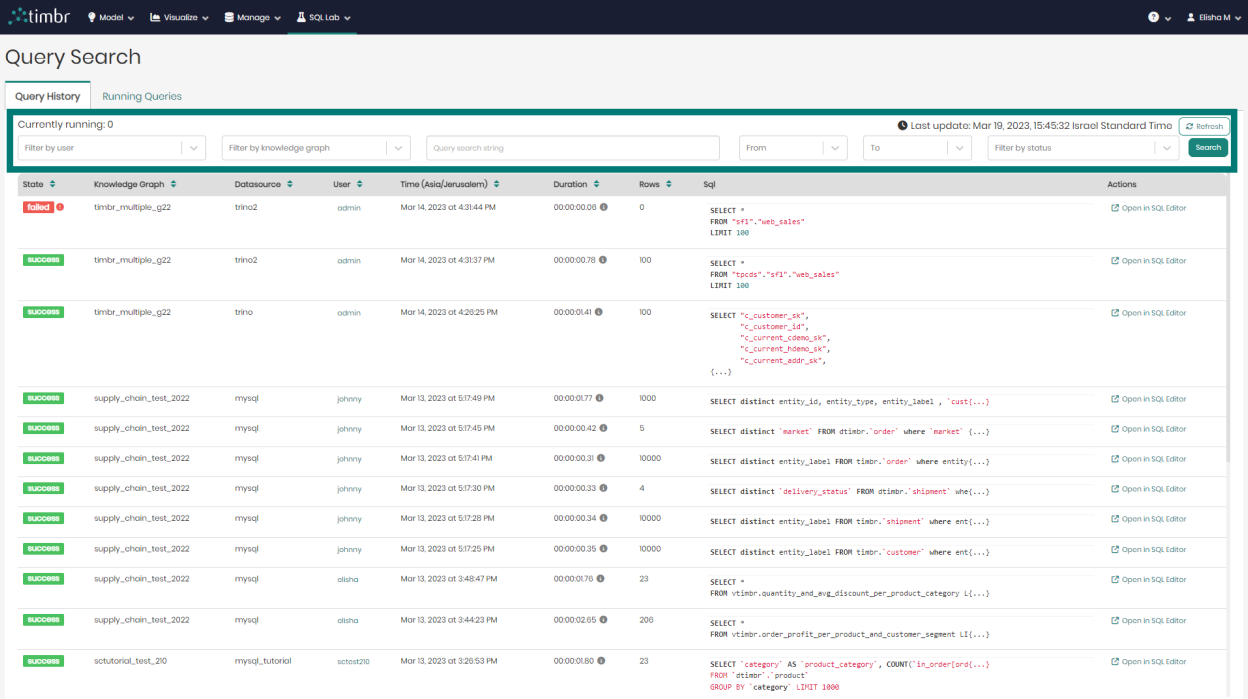
beneath the tabs is the upper query pane which contains the following options:
Currently running - Presents the number of queries that are currently running.
Filter by user - Enables to search through and filter the queries asked by specific users.
Filter by knowledge graph - Enables to search through and filter the queries asked on specific knowledge graphs.
Query search string - Enables to search through and filter the queries based on specifically chosen text.
From & To - Enables to search through and filter the queries based on a specific time frame.
Filter by status - Enables to search through and filter the queries based on a specific query status.
Refresh - Performs a refresh on the list of queries.
Search - Performs a search on the queries based on the parameters chosen in the various filters.
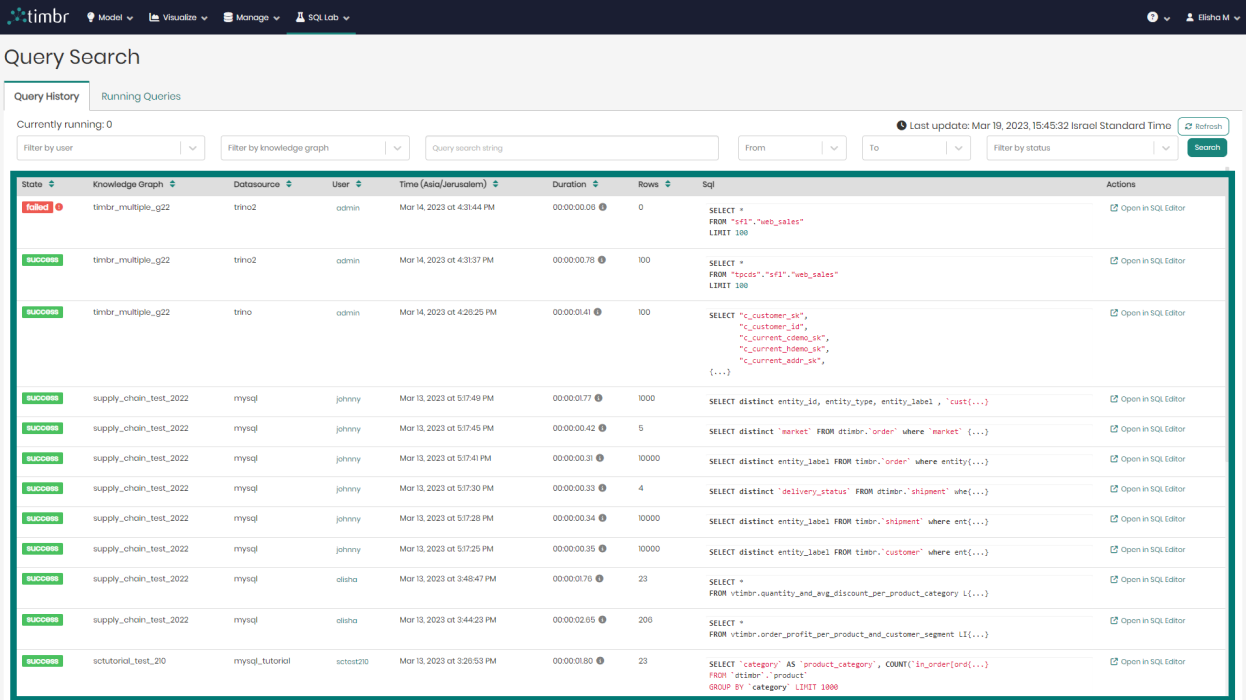
Beneath the upper query pane is the entire list of queries that were previously run. The list contains the following columns:
- State - Presents the state of each query, whether the query ran successfully or failed.
- Knowledge Graph - Presents the name of the Knowledge Graph that was used in each query.
- Datasource - Presents the Datasource that was used in each query.
- User - Presents the user behind each query.
- Time - States the exact time and date for each query at run time.
- Duration - States the amount of time it took to run each query.
- Rows - Shows the number of result rows that have been returned for each query.
- SQL - Shows a preview of each query and its SQL syntax. When clicked on, a popup window will appear presenting the entire selected query in cases where the query was too long to show in the preview.
- Actions - Contains a button called Open in SQL Editor that When clicked on will open the selected query in Timbr's SQL Editor.
Running Queries
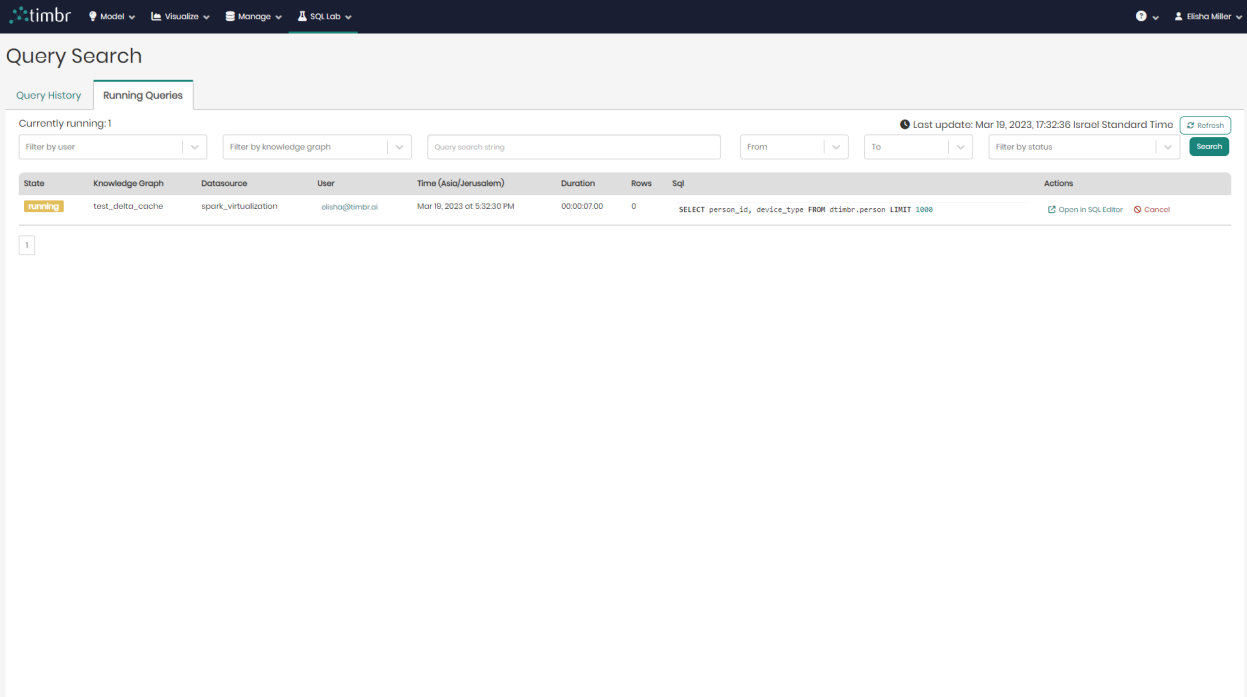
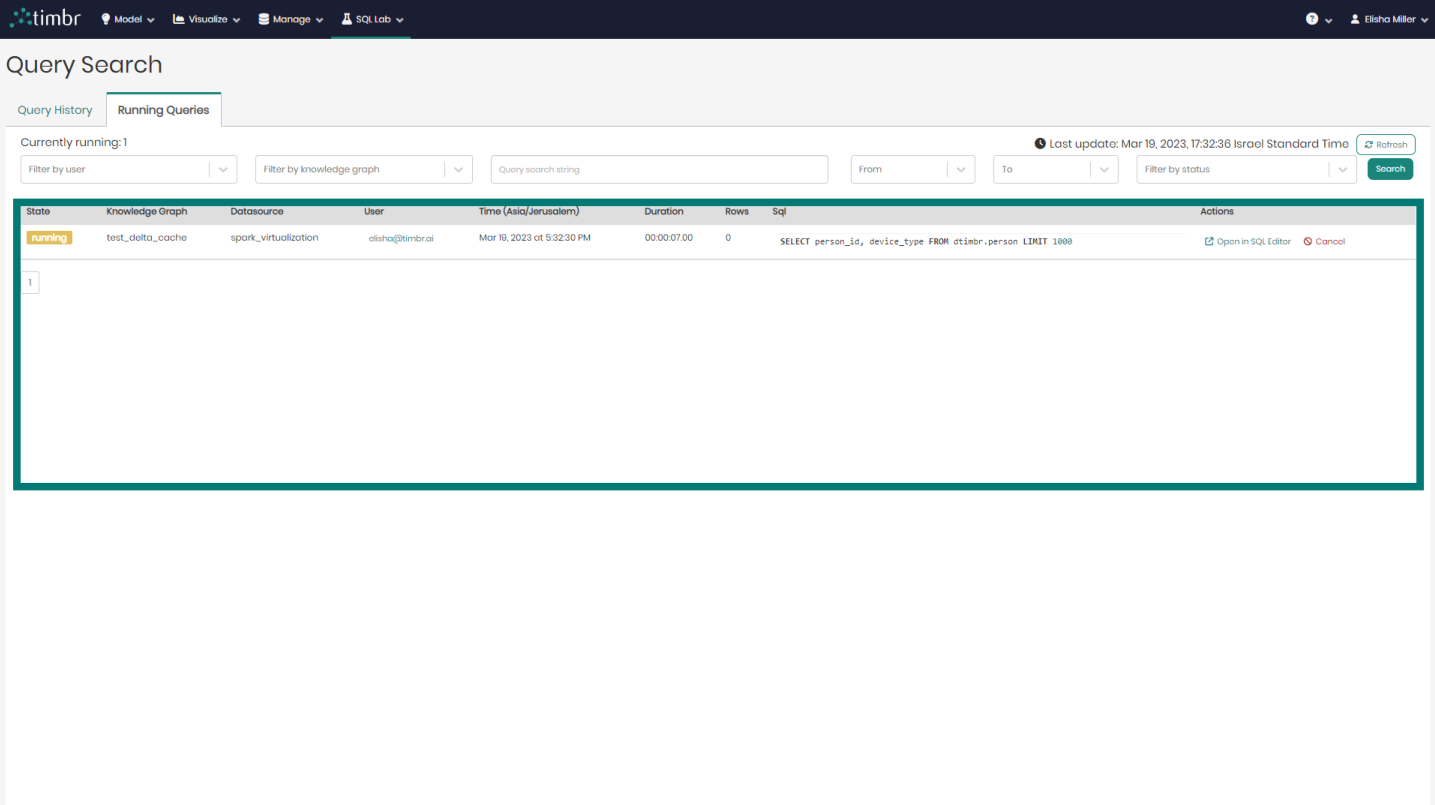
The second tab that appears in the Query Search page is the Running Queries tab, which presents all the information about currently running queries.
Similarly to the Query History tab, here too there's an upper query pane that contains the following options:
Currently running - Presents the number of queries that are currently running.
Filter by user - Enables searching through the currently running queries and filtering the queries asked by specific users.
Filter by knowledge graph - Enables to search through the currently running queries and filter the queries asked on specific knowledge graphs.
Query search string - Enables to search through the currently running queries and filter the queries based on specific chosen text.
From & To - Enables to search through the currently running queries and filter the queries based on a specific time frame.
Filter by status - Enables searching through the currently running queries and filtering the queries based on a specific query status.
Refresh - Performs a refresh on the list of currently running queries.
Search - Performs a search on the currently running queries based on the parameters chosen in the various filters.
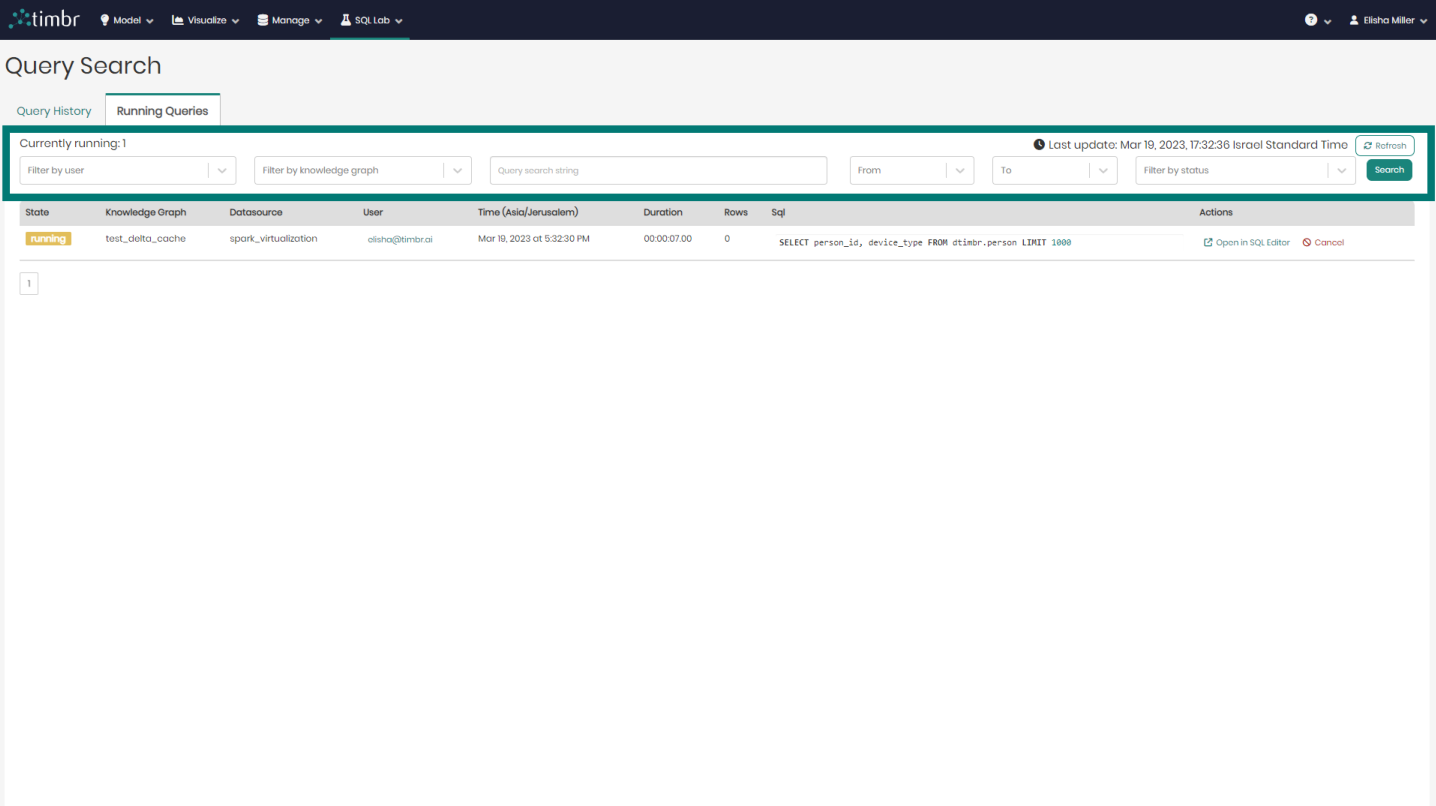
Beneath the upper query pane is the entire list of currently running queries. The list contains the following columns:
- State - Presents the state of each currently running query.
- Knowledge Graph - Presents the name of the Knowledge Graph that is being used in each query.
- Datasource - Presents the Datasource that is being used in each query.
- User - Presents the user behind each currently running query.
- Time - States the exact time and date for each query at run time.
- Duration - States the amount of time each query has been running for.
- Rows - Shows the number of result rows that have been returned for each query.
- SQL - Shows a preview of each query and its SQL syntax. When clicked on, a popup window will appear presenting the entire selected query in cases where the query was too long to show in the preview.
- Actions - Contains a button called Open in SQL Editor that When clicked on will open the selected query in Timbr's SQL Editor, as well as a Cancel button that when clicked on will cancel the currently running query selected.